Getting Started with Kettle
Since I was still one credit short in my final semester, I had to take one more course, and looking at the schedule the only option was OLAP — yet another completely unfamiliar subject. Tutorials about Kettle online are scarce, so I gathered some materials and jotted down these notes on the tool this course requires
Introduction to Kettle
Kettle is an ETL (Extract, Transform and Load) tool for data extraction, transformation, and loading. ETL tools are used very frequently in data warehouse projects, and Kettle can also be applied in the following scenarios:
Integrating data across different applications or databases
Exporting data from a database to text files
Loading bulk data into a database
Data cleansing
It is also used in projects involving application integration
Kettle is very easy to use: you design what business logic to implement through a graphical interface, with no need to write code; therefore, Kettle is designed in a metadata-oriented way
Kettle supports many input and output formats, including text files, data tables, and both commercial and free database engines. In addition, Kettle’s powerful transformation features make it very convenient to manipulate data.
Installing Kettle
Since my platform is macOS and there is a bug that prevents it from launching on double-click, I could only extract the archive and then run in the terminal
sh spoon.sh
to start Spoon
Data Transformation - Exporting to Excel
- Connect to the database
- Export to Excel
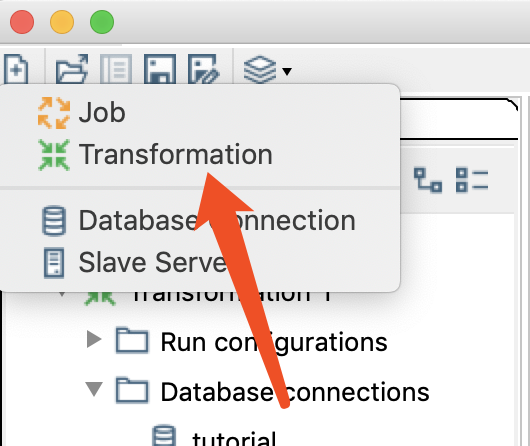
First, create a new transformation as shown in the figure below, and set up the database connection.
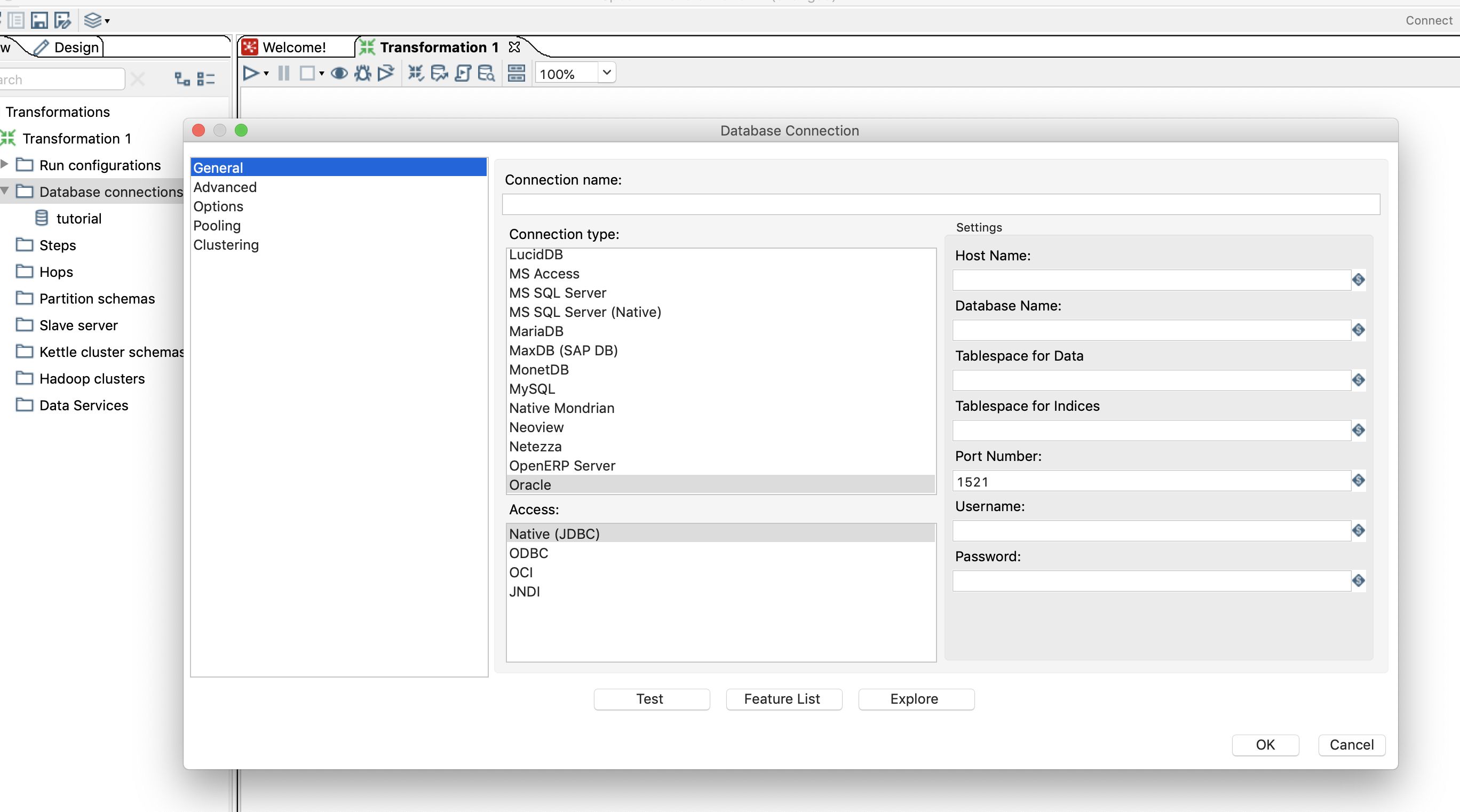
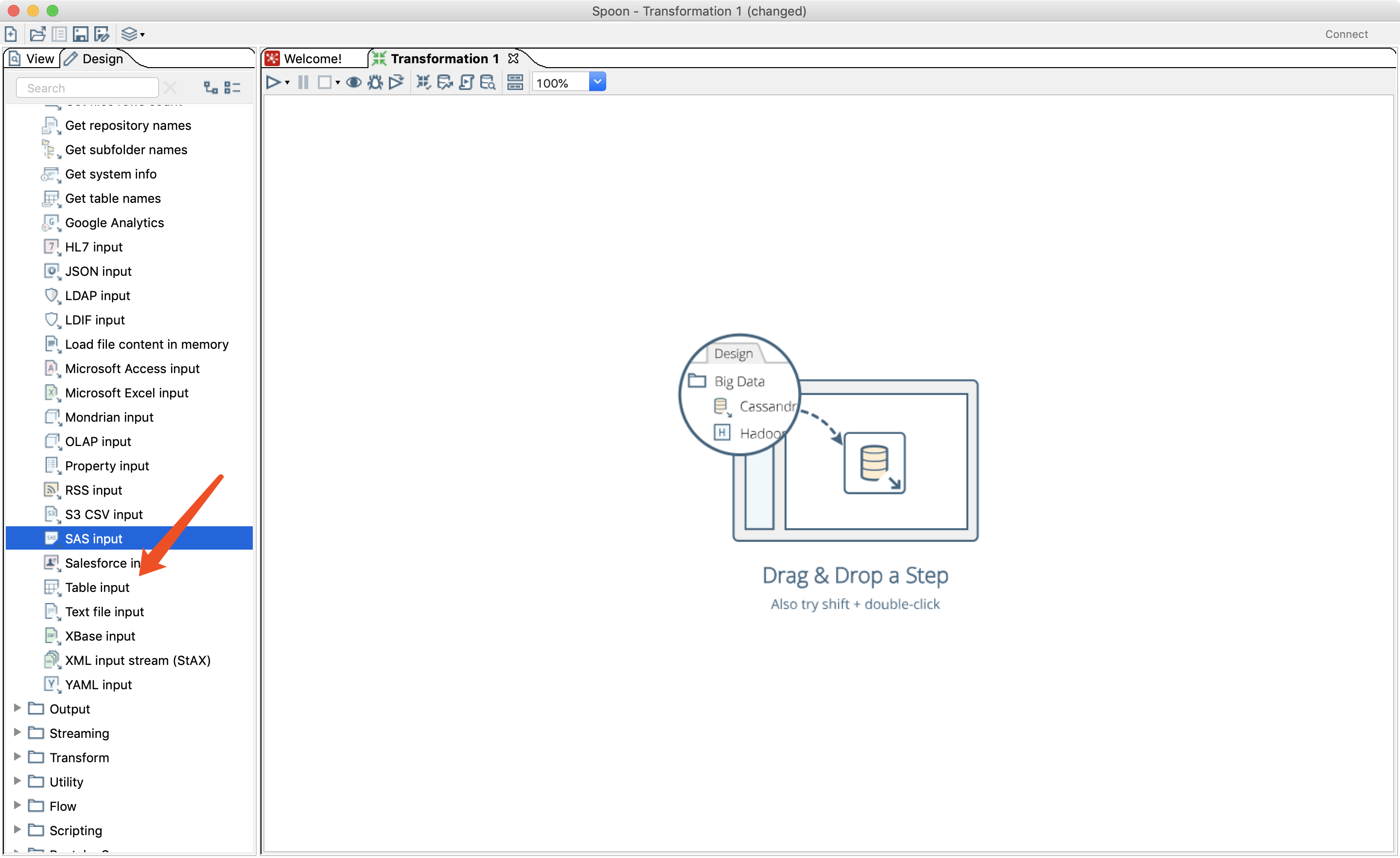
Once the database connection is set up, you can configure the input source; here we use a table in the database as the input source
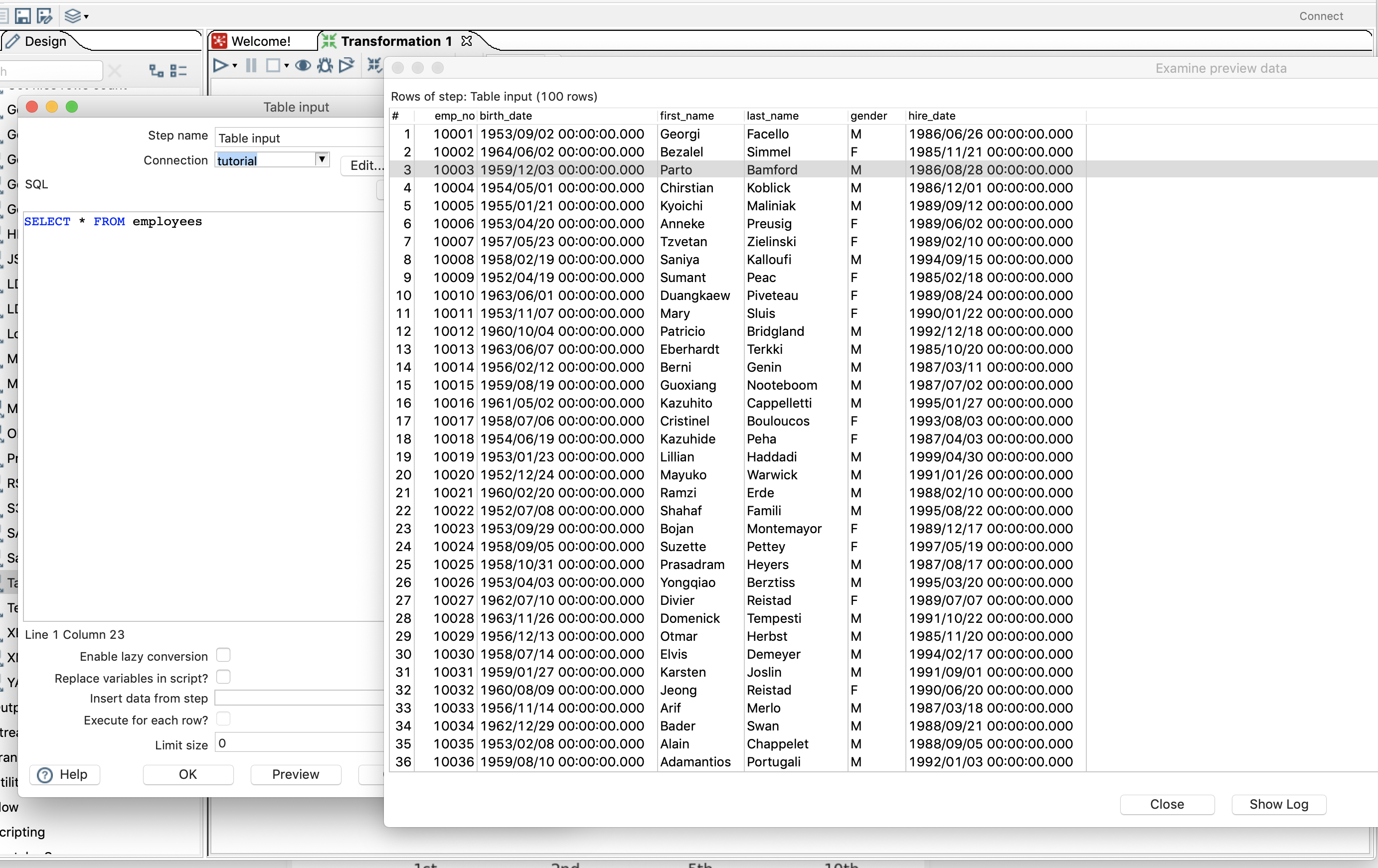
With the input source configured, you can click preview to take a look at the data first
After setting up the input source, likewise drag the Excel output onto the workspace, but don’t rush to configure the output source yet: in the View pane, add a hop to connect the input and output sources
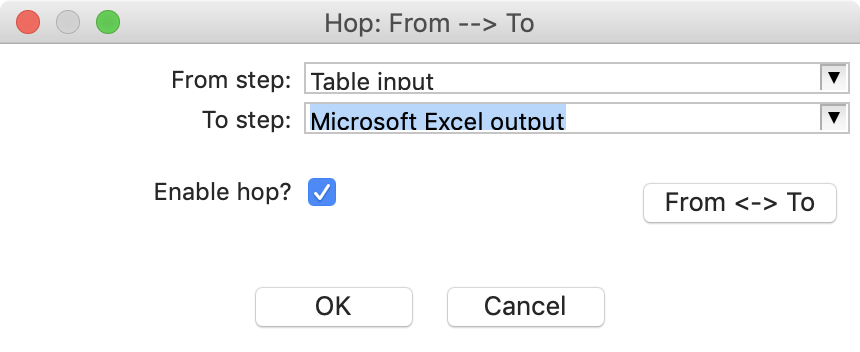
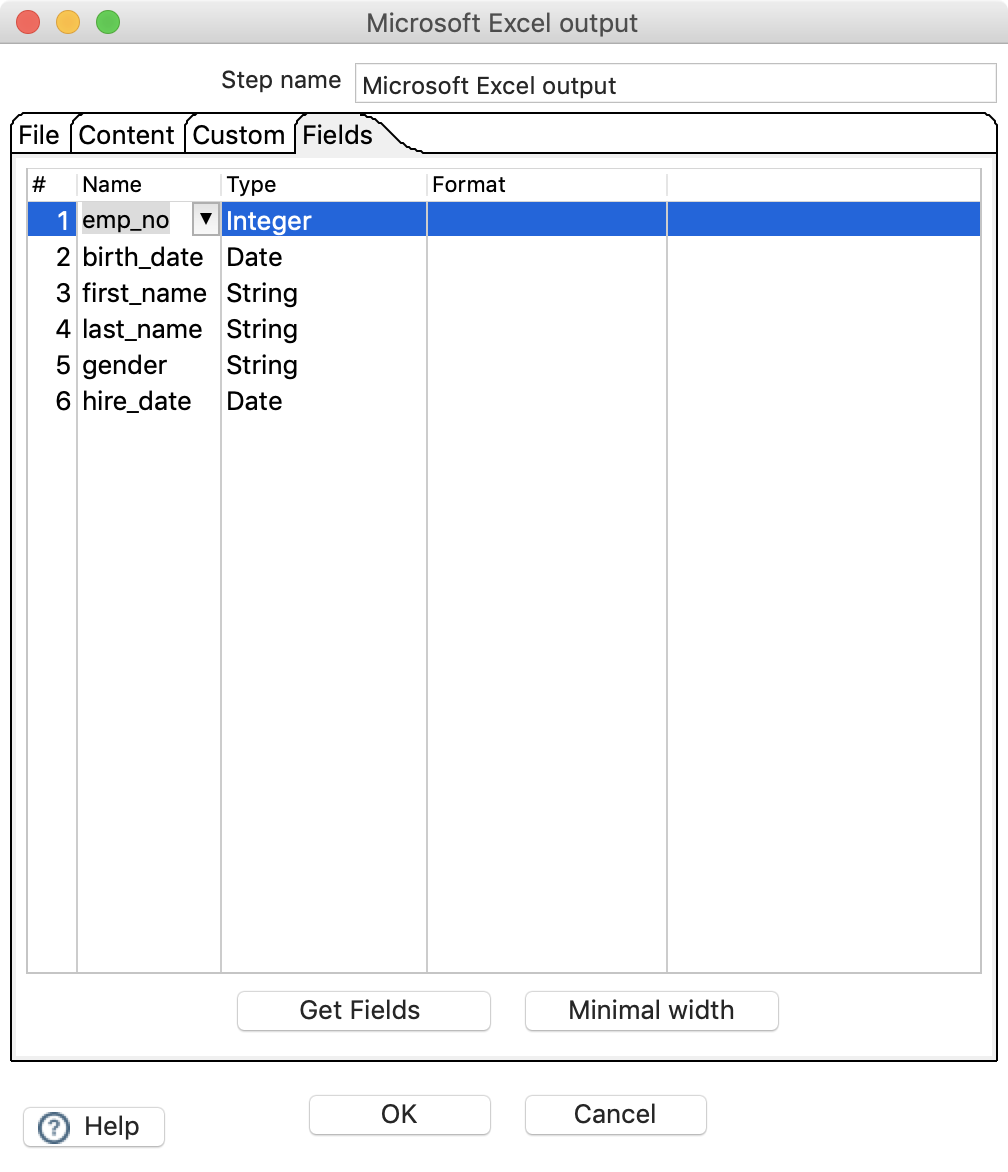
This way, when you configure the output source, you can directly fetch and select the fields to export in the Fields tab
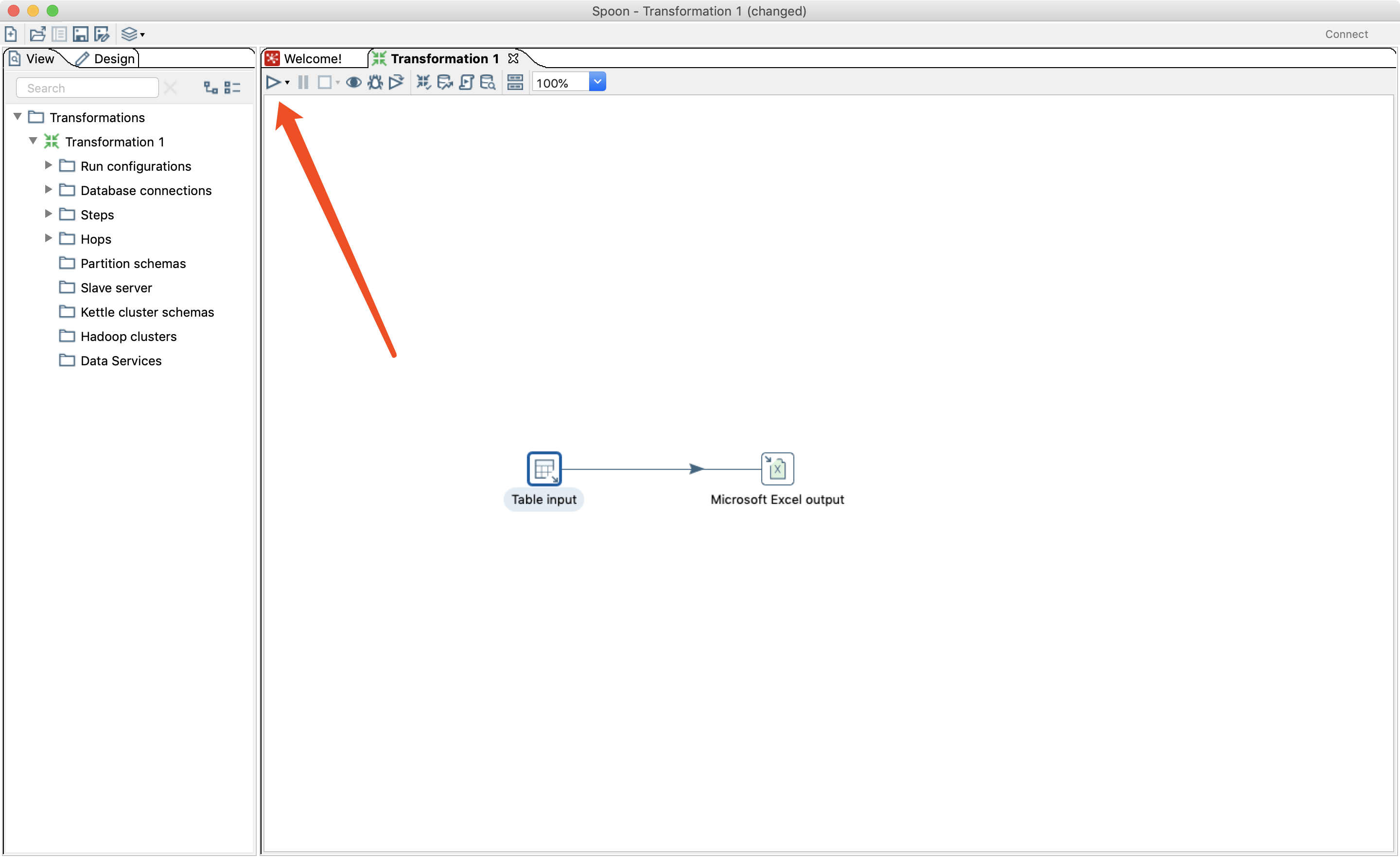
Finally, click Start to run the transformation
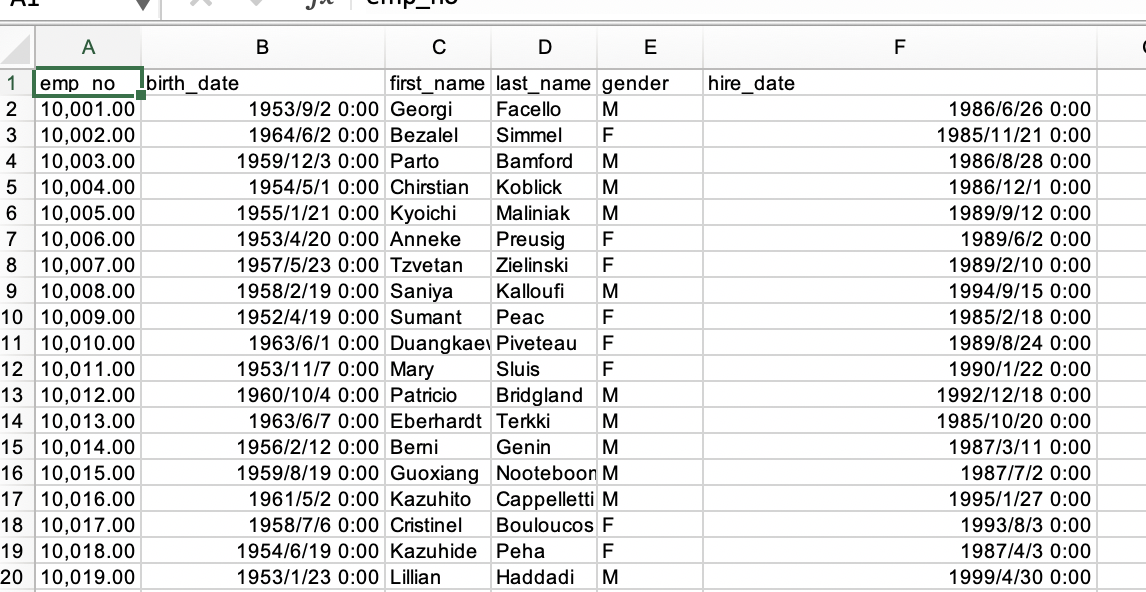
Let’s take a look at the exported file
Hello World
Alright, now that you have learned how transformations work, let’s do a Hello World example. I came across this tutorial online and found it pretty good — it lets you get in touch with more of Kettle’s features, unlike my very basic walkthrough above.
This Hello World outputs a corresponding greeting for each name in the database and exports the result to a file.
First, set up the input source the same way, but the SQL statement needs a small change: here I selected only their names, ordered by id, limited to the first ten.
Then write a small JavaScript script to automatically add a “hello”
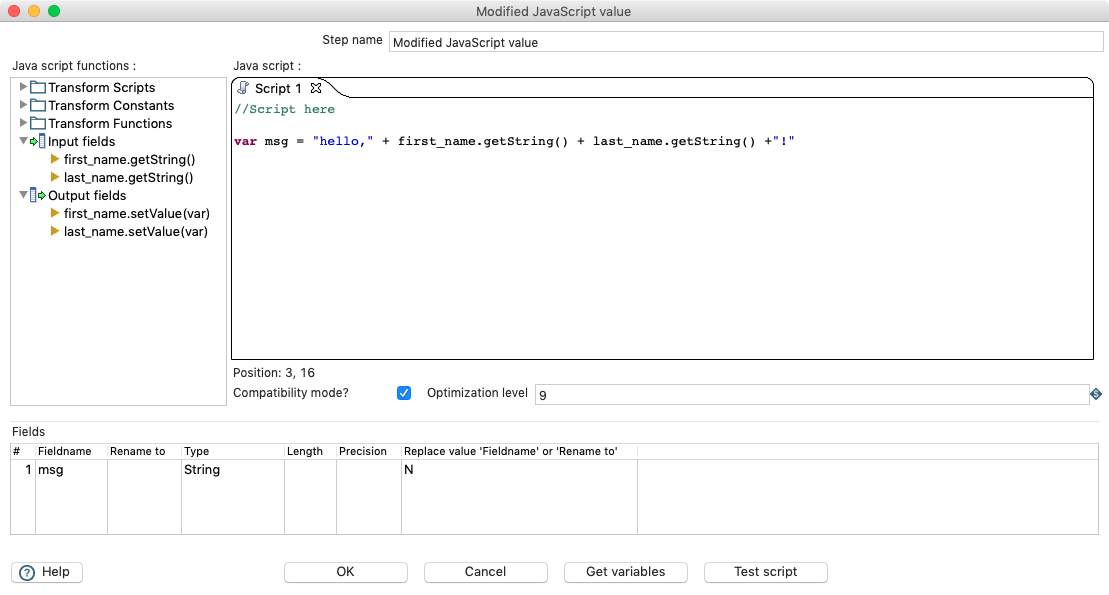
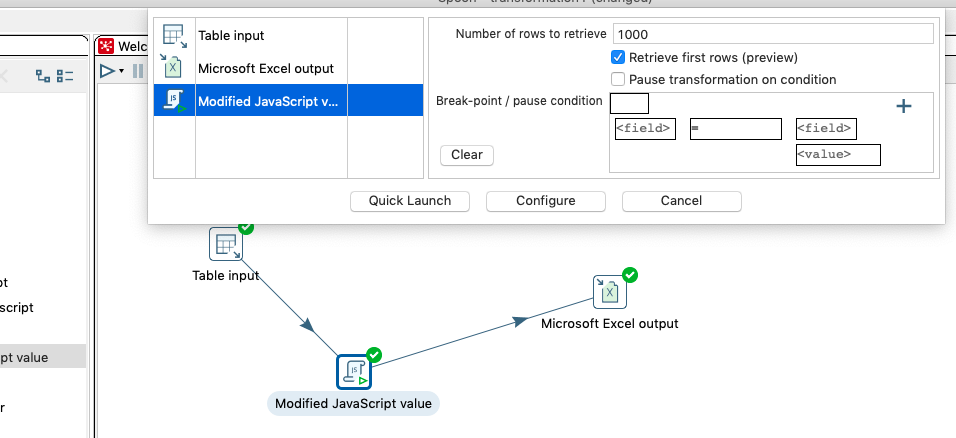
Finally, link the three steps with hops; you can run preview first to check the result
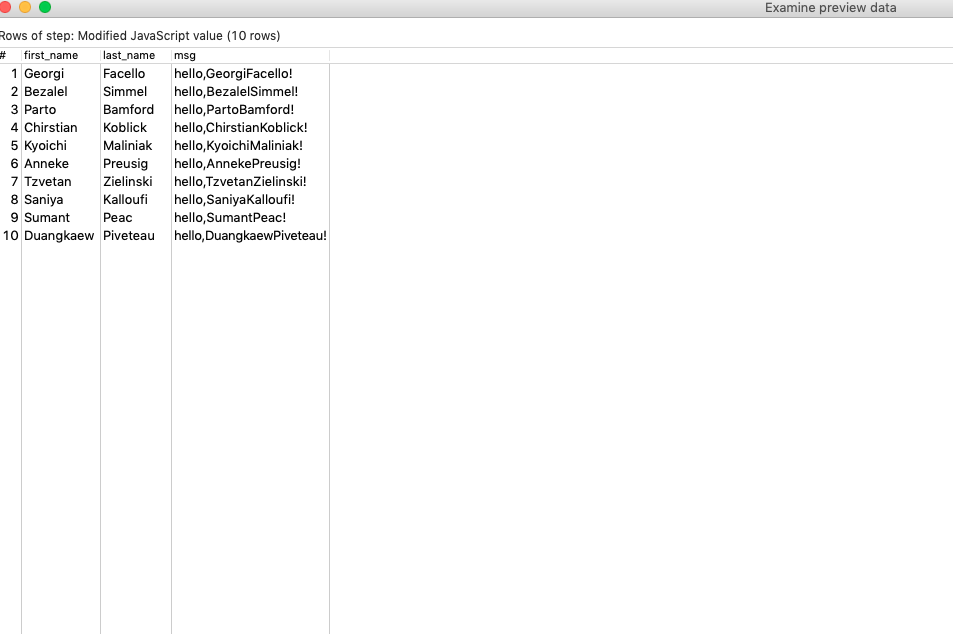
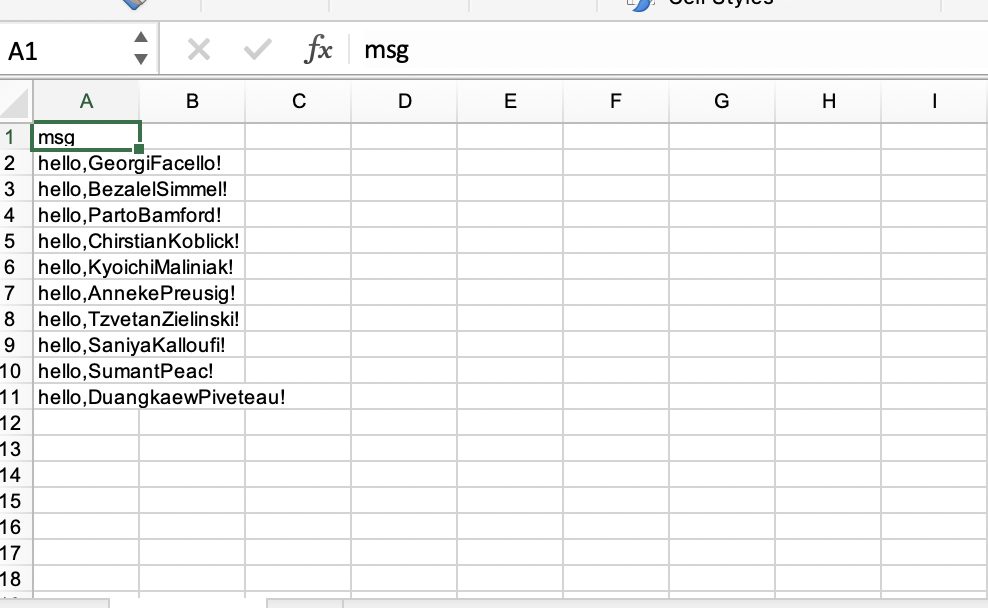
Then take a look at the result
The above only demonstrates the most basic features of data transformation; other, more detailed features can all be found in the Design tab In short, Kettle’s operating logic is steps + hops: a step is an operation you perform, and hops are the links between them.
Jobs
The above covered transformations, one of Kettle’s core features; now let’s introduce another Kettle feature, the job.
A job is essentially an automated workflow: when you need to run multiple transformations or add some logical control conditions, you need a job.
Here, following the earlier Hello World example, we build a simple job that detects when the file does not exist in the folder and then automatically exports data from the database and adds “hello”.
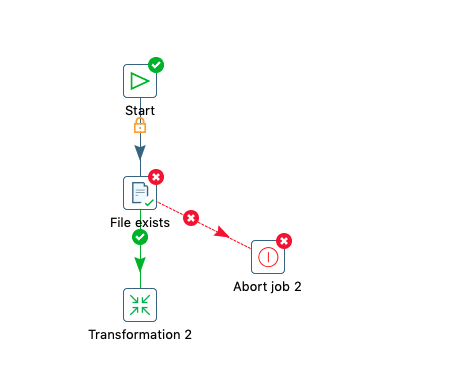
Find the widget shown in the figure above in the toolbar on the right, drag it into the workspace, connect things with hops, and configure it — that’s it. The operations are similar to those for creating a transformation; it just combines several of them together
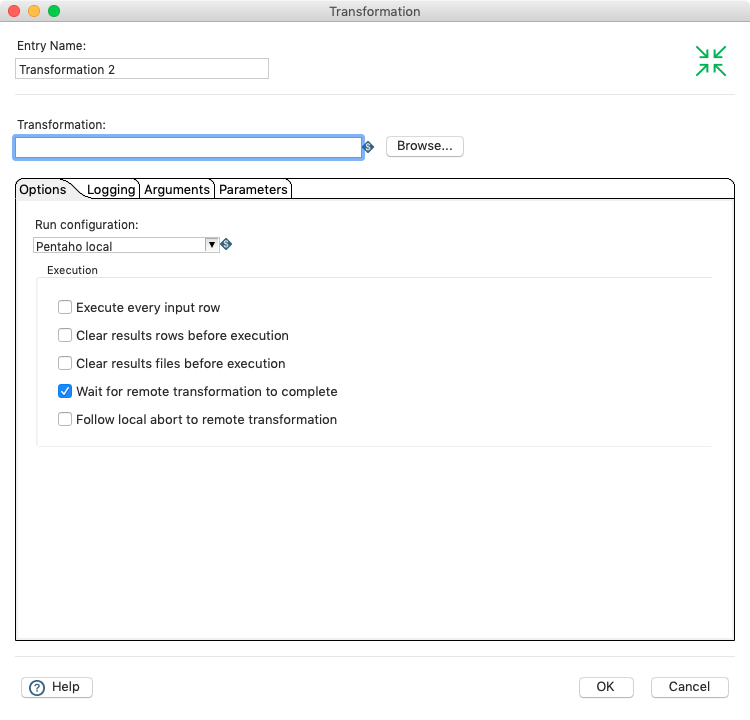
The figure below shows the transformation configuration interface, where you enter the path of the transformation script
Kitchen and Pan
The kitchen and pan commands are used to execute job and transformation scripts.
./kitch.sh -file ./scripts/demo.kjb
./pan.sh -file ./scripts/demo.ktr
From now on, just save the jobs and transformations designed in Spoon and run them directly from the command line — much more convenient.
I’ll update these notes whenever I get to use new features.
References
The ETL Powerhouse Kettle in Practice, Part 1 [Introduction to Kettle]